


What resolution do you need for large framed prints?
Written by: Daniel Koren, Co-Founder, Frameology
Key takeaways
For large framed prints viewed from a few feet away, 150 PPI at final size usually delivers sharp, detailed results.
Pixel dimensions, not DPI metadata, determine print quality. Divide pixel width by print width in inches to find true PPI.
Most modern phone photos from 12MP to 48MP can produce crisp large prints at 150 PPI, while screenshots and heavily compressed files often can’t.
Canvas prints handle slightly lower resolution well, so they work especially nicely when your file lands near the 150 PPI threshold.
Frameology prints and hand frames every order in the United States using museum-grade materials, and offers a mobile-only AR preview so you can see your framed print on your wall before you buy.
Create a large framed print today with Frameology
Pixels vs. DPI: the distinction that answers most resolution questions
Pixels set the real limit for print size. Your photo has a fixed number of them, for example 4,000 across and 3,000 tall, and that number doesn’t change when you open the file in different software. DPI (dots per inch) is a print setting chosen at output. PPI (pixels per inch) describes your file’s density at a specific print size.
A common source of confusion comes from JPEG metadata. A JPEG can report “300 DPI” in its metadata, but that label only tells software how large to display the image. Changing a file’s DPI metadata field doesn’t change the pixels in the image. You can open a photo, change it from 72 to 300, save it, and the image stays pixel-for-pixel identical.
The formula that actually matters is: pixel width ÷ print width in inches = PPI. For example, a 4,000-pixel-wide file printed 24 inches wide equals about 167 PPI. That number tells you what the print will really look like.
Two widely referenced standards help you judge those numbers. Adobe’s current printer-resolution guidance states that at least 220 PPI is usually sufficient for high-quality photo prints on an inkjet printer, and 300 PPI is Adobe’s commonly cited benchmark for close-up viewing. HP notes that defaulting to 300 PPI for every print often creates enormous files without improving visible quality at typical wall-viewing distances. These are industry standards, not Frameology claims.
What resolution you need for a 24x36 print
For a 24x36 print, you need 3,600 x 5,400 pixels at 150 PPI, or 7,200 x 10,800 pixels at 300 PPI. The 150 PPI guideline from the key takeaways works well for a 24x36 that hangs above a sofa and is viewed from several feet away.
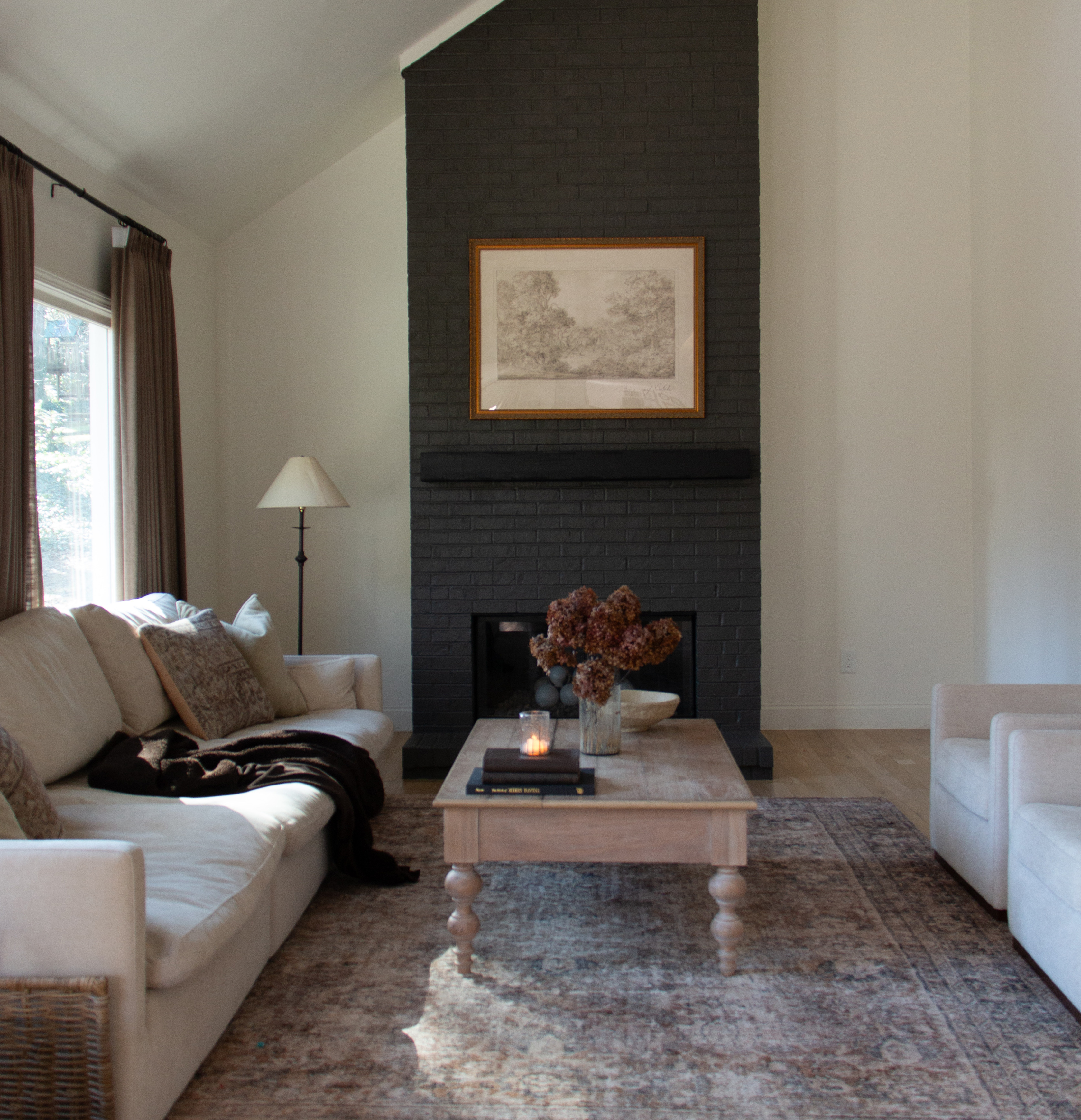
For posters up to 24x36 inches, 200 to 300 DPI is the target for close-up viewing, while 150 DPI produces clean results when the print hangs on a wall and is read from three feet or more. A 24x36 above a sofa almost always falls into that second category.
At Frameology, 24×30 Luxe Wall frames cost $199, while 24×30 Luxe Vintage and Luxe Wall Thin frames start at $219. Each of these premium frames use museum-quality framing with acid-free mats, UV-protecting museum-grade acrylic, and continuous-tone archival printing on premium photo paper. If you’d prefer a frameless option, the Premium Canvas Print, starting at $19, is available up to 40x60 inches.
Pixel-dimension lookup table for large framed prints
Use this table to quickly match your photo’s pixel dimensions to common large print sizes. It shows the minimum and ideal pixel counts at 150 PPI and 300 PPI, so you can see which sizes your file can handle confidently.
Print size |
Minimum pixels at 150 PPI |
Ideal pixels at 300 PPI |
|---|---|---|
16x20 in |
2,400 x 3,000 |
4,800 x 6,000 |
20x30 in |
3,000 x 4,500 |
6,000 x 9,000 |
24x36 in |
3,600 x 5,400 |
7,200 x 10,800 |
30x40 in |
4,500 x 6,000 |
9,000 x 12,000 |
40x60 in |
6,000 x 9,000 |
12,000 x 18,000 |
Canvas prints are lightweight and renter-friendly, and you can hang them using damage-free mounting strips or velcro wall adhesives. Canvas has a textured surface that’s naturally more forgiving of slightly lower pixel counts than a glossy framed print. Canvas weave and lower surface acuity reduce the visibility of the smallest image detail, which makes canvas a common match for 150 PPI large-format output. When your file lands near the 150 PPI column, canvas is a strong choice.
How to check your own photo in 30 seconds
You can confirm your photo’s resolution with a quick check that works on phones and computers.
Find the image file on your phone or computer.
Check its pixel dimensions: on a phone, open the photo and look at file info or details; on a Mac, right-click and choose Get Info; on Windows, right-click, choose Properties, then the Details tab.
Divide the pixel width by your intended print width in inches.
The formula: pixel width ÷ print width in inches = PPI.
Two quick reference points help you interpret the result:
150 PPI or higher usually works well for large framed prints viewed from a few feet away.
300 PPI is ideal for close viewing, such as desk frames, small prints held in hand, or fine-art reproductions inspected up close.
If your number lands near 150, you’re in good shape for a large wall print. Frameology’s frame builder also notifies you if your uploaded file is flagged as low resolution, so you have a built-in safety net.
Can a phone photo make a large framed print?
Your phone photo usually has enough resolution for a large framed print, especially at typical wall-viewing distances. A typical 12MP phone photo is roughly 4,032 x 3,024 pixels. At 150 PPI, a 12MP file supports a print of about 26.7 x 20 inches, which comfortably covers a 16x20 and reaches a 20x30 at the 150 PPI threshold. For close-up viewing at 300 PPI, that same file tops out around 13x10 inches, so viewing distance plays a big role.
A 48MP phone photo is roughly 8,000 x 6,000 pixels. At 150 PPI, a 48MP file supports a print of about 53 x 40 inches, which easily covers a 24x36 at 150 PPI and even a 30x40 at around 200 PPI. Almost any flagship phone from the last three to four years takes photos sharp enough to print at 40x60cm and well beyond. The files that usually fail are screenshots, images saved from social media, or photos sent through messaging apps that compress aggressively.
Frameology’s mobile-only AR preview lets you preview your frame or photo gift before you buy, so you can judge size and placement alongside resolution. It’s available directly in the mobile browser, with no app download required.
Upload your photo and preview your frame
What happens if your file is too small?
When a file falls below the resolution threshold, the first thing you’ll notice is softness and loss of fine detail. Hair strands, fabric texture, and sharp edges go slightly hazy. Visible pixelation, the blocky stair-step effect, usually appears only with more extreme shortfalls. Quality drops along a gradual slope instead of at a sudden cliff.
These practical fixes, in order of ease, give you a clear path forward:
Print at a smaller size: the same file that’s borderline at 24x36 often looks comfortably sharp at 16x20.
Switch to canvas: the textured surface is more forgiving of lower pixel counts than a glossy framed print.
Crop to a smaller aspect ratio: when your photo has a lot of empty space around the subject, cropping tighter reduces the print area and raises your effective PPI.
Each option trades off size, medium, and composition differently, so start with the simplest change and move down the list if you still see softness.
Professional labs can also upscale files using AI-assisted tools. AI upscaling reconstructs plausible detail rather than recovering a guaranteed original image, and it works best for modest enlargements, where 2x is reliably clean and more aggressive passes can introduce artifacts on faces and fine textures. Treat AI upscaling as a rescue tool instead of a standard workflow step.
Frameology prints and hand frames in the United States, pairing each medium with best-in-class printing technology. Framed prints use continuous-tone archival printing on premium photo paper, and canvas uses high-resolution Giclée printing. Classic frames, starting at $39, and Luxe frames, starting at $79, make sizing down to a smaller frame an easy, affordable fallback.
Viewing distance: why a 24x36 above a sofa needs less resolution than a 16x20 at eye level
Pixel dimensions set the upper limit of print quality, and viewing distance determines how many of those pixels you actually need. Resolution requirements scale with how close the viewer stands, not just with print size. HP’s large-format printing guidance notes that required file resolution decreases as viewing distance increases, because the human eye can’t distinguish fine detail at a distance. HP recommends 200–300 PPI for prints viewed under 2 feet, 150–200 PPI at 3–5 feet, and 100–150 PPI at 5–10 feet.
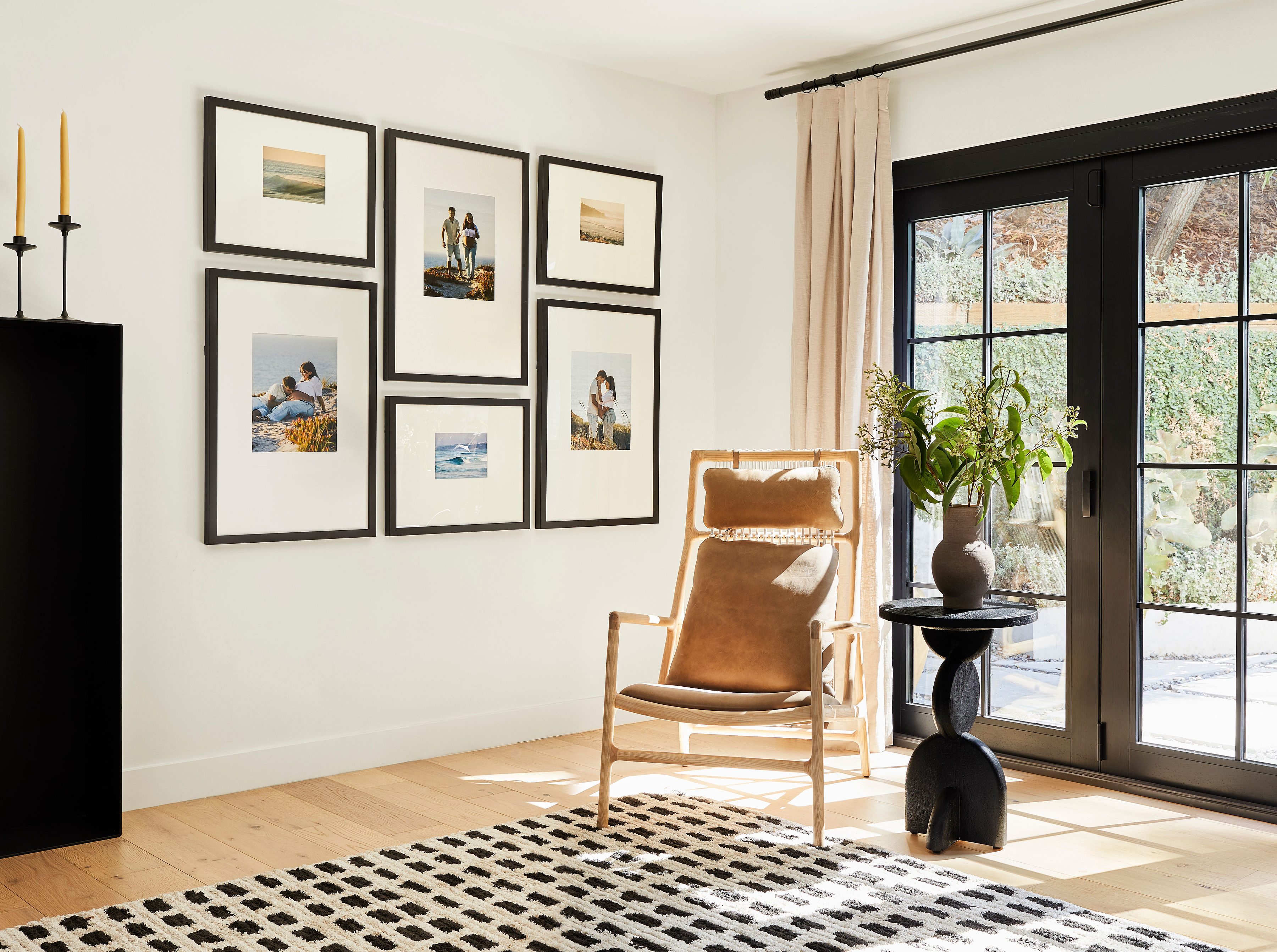
Experienced print labs note that a wall-sized canvas at 150 DPI looks as sharp on the wall as an 8x10 at 300 DPI on a desk, because larger prints are judged from farther away. A 24x36 above a sofa is typically viewed from 6–10 feet, which sits comfortably in the 150 PPI range. A 16x20 in a hallway or at eye level on a gallery wall may be approached closely, so 300 PPI becomes the safer target.
This viewing-distance effect matters for framing decisions too. Size, mat width, and wall placement all shape the resolution you actually need. For example, when you’re planning a gallery wall, the templates included with Classic and Luxe gallery walls include life-size gallery wall templates that help you visualize placement and ensure each print suits its viewing distance. Canvas galleries and gallery walls created using Frameology’s Gallery Wall Design Service don’t include templates because their construction and customization work differently and often need more tailored installation approaches.
Is a JPEG or PNG better for printing?
JPEG works well for photos and is what most phone cameras produce. PNG works better for graphics with sharp edges and text, such as logos, illustrations, and designs with large flat areas of color. For large framed prints, a full-quality JPEG exported at the final print size with at least 300 PPI, or 150–200 PPI for prints viewed from a distance, is the practical choice, and pixel dimensions matter more than file format. For print-destined JPEGs, never compress below quality 90, and export at quality 95–100 to minimize compression artifacts, since lower settings risk visible banding in gradients and halos around high-contrast edges.
Should I scan my photos at 300 or 600 DPI?
Scan printed photos at 600 DPI when you plan to enlarge them significantly. Scanning a 10x15cm print at 600 DPI gives roughly 2,400 x 3,600 pixels, which is enough for a sharp 20x30cm reprint. Scanning at 300 DPI usually works for reprints at or near the original size.
Scanning at 600 DPI gives you more pixels to work with, which matters when the final framed print will be larger than the original photo. For old family photos you’re digitizing for a large framed print, 600 DPI gives you headroom to crop, correct, and enlarge without hitting the resolution floor.
Let’s get your large frame print ready to go
Pixels are the real constraint for print quality, and the DPI number in your file’s metadata is just a label. For large framed prints viewed from a few feet away, the 150 PPI guideline from the key takeaways usually gives you the right balance of sharpness and flexibility, while 300 PPI suits prints that people will inspect up close.
Your next steps stay simple: check your file’s pixel dimensions, divide by your intended print width in inches, and pick a frame size your photo can confidently fill. Use the lookup table to match your file to common print sizes in seconds.
Frameology prints and hand frames every order in the United States, backed by 30+ years of family-owned framing heritage and 7,500+ verified customer reviews. Premium Canvas Prints, starting at $19, Classic frames, starting at $39, and Luxe frames, starting at $79, all include museum-grade materials, acid-free mats where applicable, and hanging hardware. The mobile-only AR preview lets you see your frame or photo gift on your wall before you buy. You can learn more about why Frameology is the best online framing service.
Start your framing project now at Frameology
Frequently asked questions
What resolution do I need for a 16x20 print?
For a 16x20 print viewed from a few feet away, 2,400 x 3,000 pixels at 150 PPI is generally sufficient. For close-up viewing or fine-art quality, aim for 4,800 x 6,000 pixels at 300 PPI. Most modern smartphone photos clear the 150 PPI bar for a 16x20 without any upscaling.
What resolution do I need for a 24x36 print?
For a 24x36 print, use the same pixel guidelines described earlier in the 24x36 section and the lookup table. Those numbers cover both wall display and close-up viewing needs.
What’s the best resolution for large prints?
For large framed prints viewed from a few feet away, 150 PPI at final size is usually the most practical target. It looks sharp at normal viewing distance and works with files from most modern phone cameras. For prints that people will examine up close, such as a small desk frame or a fine-art reproduction inspected at arm’s length, 300 PPI is the better goal. The right answer depends on where the print will hang and how close viewers will stand.
Can a JPEG be 300 DPI?
A JPEG can carry a 300 DPI label in its metadata, but that label only controls default display or print settings. A JPEG can report 300 DPI and still have too few pixels for a large print, or it can report 72 DPI and have plenty. Pixel dimensions carry the real information. Divide the pixel width by the intended print width in inches to find the actual PPI.
How do I make sure my photos are 300 DPI?
Check the pixel dimensions of your file, then divide by the intended print width in inches. If the result is 300 or higher, your file reaches 300 PPI for that size. If it’s lower, you can choose a smaller print size, switch to a more forgiving medium like canvas, or use an AI upscaling tool to add pixels before ordering. Changing the DPI number in a photo editor without resampling doesn’t add pixels and only changes the implied print size.
How big can I print a 300 DPI image?
Divide each pixel dimension by 300 to find the maximum print size at 300 PPI. A 6,000 x 4,000 pixel file prints 20 x 13.3 inches at 300 PPI. The same file prints 40 x 26.7 inches at 150 PPI, which looks sharp for a wall print viewed from a few feet away. Maximum size depends on both the pixel count and the viewing distance you’re designing for.
